
Navigation in MetaCroc #
Summary #
This page provides a basic overview of working with the MetaCroc system, allowing you to understand its philosophy, navigate the user interface for different types of elements in panels. It describes the basic principles, characteristics of MetaCroc, how to use this guide to obtain further information, terminology used, etc.
User interface #
The user interface looks like this (example in Chrome):
 There are three main areas on the page:
Page Header - Switching between PROJECT VIEW/SETTINGS, information about the logged-in user, global search
Element Tree Panel - Elements tree structure with active locks indication
Element Workspace - Area where element editing takes place
Page Header #
The page header shows information about the project and information about the logged-in user. Logout option, global search in the project and access to project settings are available here:

Mode selection: SETTINGS for project settings, PROJECT VIEW for actual metadata creation
Global search: full-text search in all project metadata
Information about the logged-in user with logout option
Project Panel #
The Project panel provides hierarchical view of project elements and tools for bulk editing of objects.
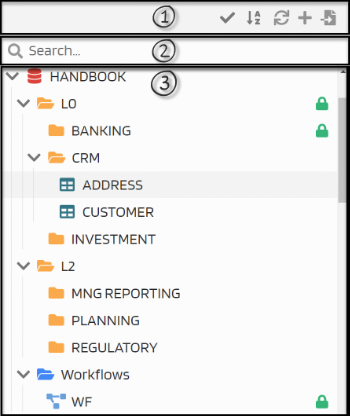
- Icon bar (1)
- Search (2)
- Object tree (3)
The Project panel provides objects’ display, selection, export, import and code generation for selected objects, bulk saving, editing, etc. The Object tree can contain following types of elements:
| Element | Description |
|---|---|
 |
System represents a data source. Most often a database. Depending on the system, attribute stereotypes (data types) templates for script creation are defined. |
 |
Folder is a container for objects. Nested objects can be other folders or elements (tables, API nodes). |
 |
Table represents a table with columns and other properties in the system |
 |
Mapping describes a data transformations (ETL/ELT) |
 |
API node represents a data source accessible via API |
 |
View |
 |
Queue |
 |
Workflow folder is a container for workflows. It is created simultaneously with the creation of a system and can contain only workflows |
 |
Workflow |
Details about Elements Tree are described here.
Object Workspace #
The Object Workspace is the area of the screen where activities directly affecting the stored metadata associated with individual project objects are performed. For easy orientation, we’ll divide the workspace into:
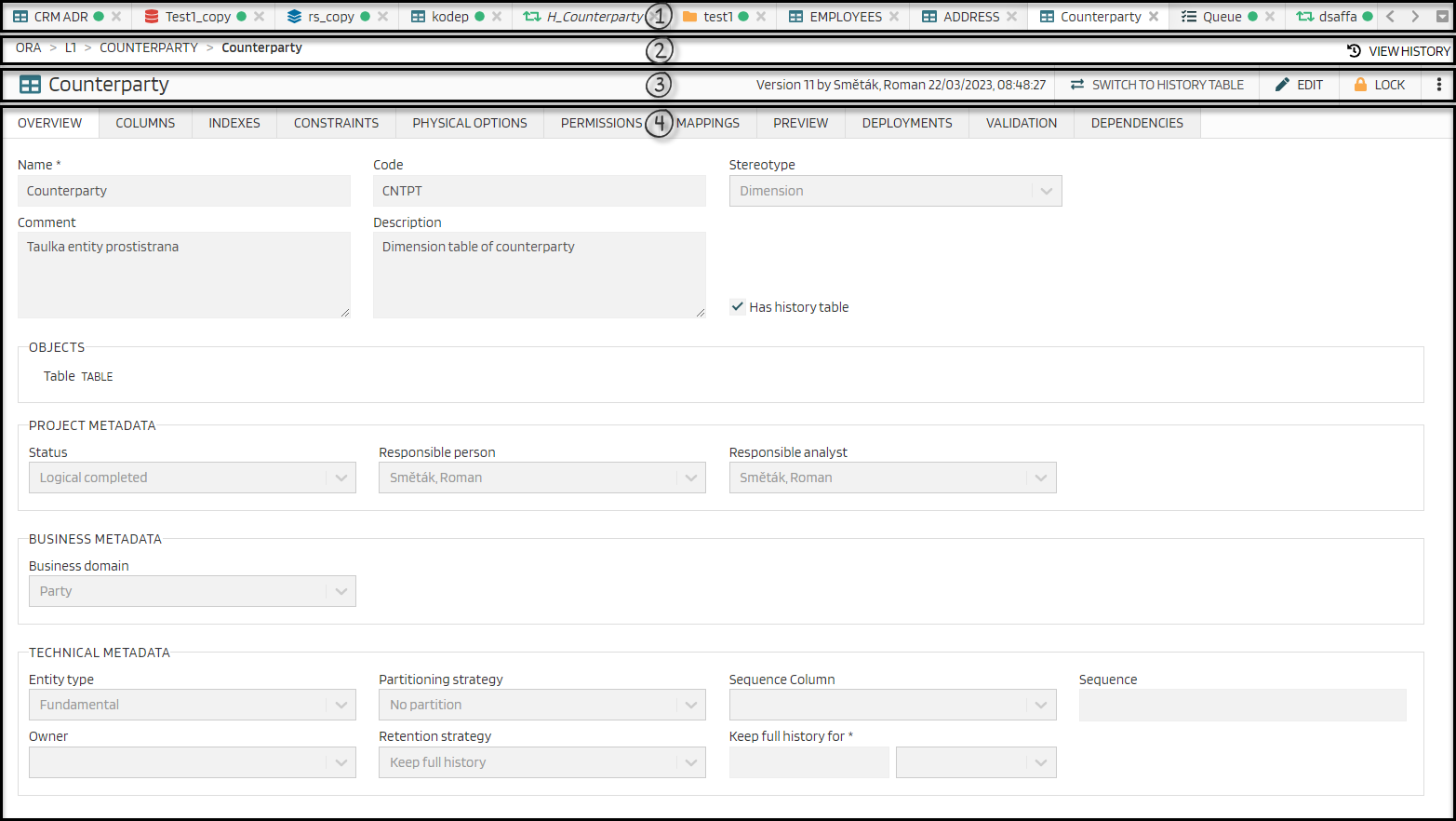
Object workspace
- Tab bar (1)
- Version panel (2)
- Edit panel (3)
- Object panel (4)
Details of the Object Workspace are described in detail here