
Project panel #
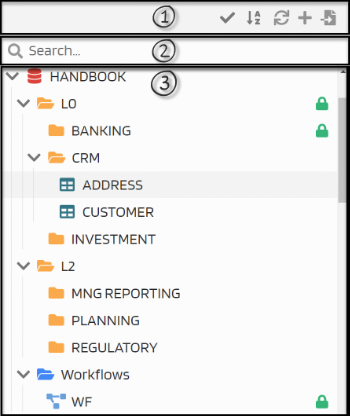
The panel provides hierarchical orientation in project elements, tools for working with bulk elements edits. Let’s look at individual areas: Icon bar (1) Search (2) Element tree (3)
Project panel Icon Bar #
The icon bar provides shortcuts to tools working with the elements in the tree. These are the following functionalities/icons:
| Element | Description |
|---|---|
 |
Switch to Select mode |
 |
Sort alphabetically |
 |
Refresh |
 |
Add System |
 |
Import System |
Select mode #
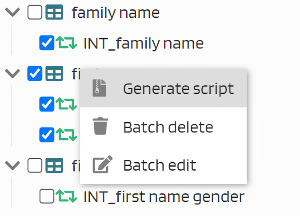
Switching to element selection mode allows performing bulk actions on selected elements, such as delete, edit and script generation. In this mode, the context menu offers actions related to the expected bulk action.
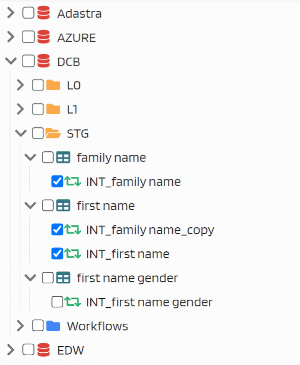
Element selection display mode
A checkbox appears next to the name of each element, allowing the element to be included in the bulk action.
Sorting #
Two sorting options exists: user and alphabetical. Here you can switch between these modes.
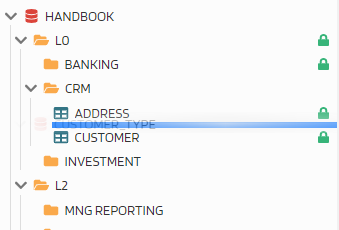
This button allows to switch between these views. In user sorting mode, you can change the order of elements by dragging them to the desired place/order
Refresh Display #
After some actions in the panel workspace, such as editing an element name or adding a new elements by other users, it is necessary to refresh the panel content to display everything correctly.
Adding a System #
Brings up the menu for adding a new system. In the system view, there’s no parent folder where it could be added analogously with other element types in the context menu, so the option to add a system is available here.
System Import #
You can import a system exported to .json format from another MetaCroc project. Because successful import assumes identical settings of both projects, this option can be used for cloning systems.
Filtering #
To select or search for objects by name, use the Search field, where you can insert a text string that is applied as a filter in object names. Matching items are expanded and the corresponding match is highlighted in yellow.
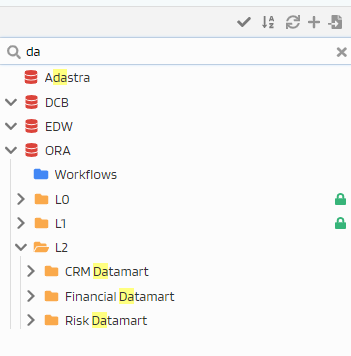
Context menu #
A context menu is available for element on right mouse button click
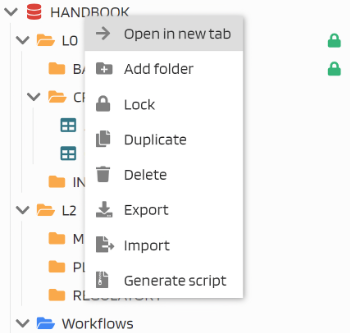
| Menu item | Action |
|---|---|
| Open in new tab | Opens the item in a new tab in the workspace |
| Add folder | A folder under the selected system is added |
| Lock | Locks the system object for current user. Does not lock subordinate objects. |
| Duplicate | Creates a copy of selected element including its childrens. For copying, you can choose a suffix for the names of copied objects |
| Delete | Deletes the entire system including its children |
| Export | Exports the system in .json format for import into another MetaCroc instance |
| Import | Starts the import wizard |
| Generate script | Starts the Script Generation Wizard |
Bulk script generation dialog
Mass script generation #
It is possible to generate output scripts for all element in a folder. From folder level, select Generate script in context menu:

There are several options:
| Option | Description |
|---|---|
| Object types | User can check all object types that he wants to generate |
| Status | Selection of element statuses that should be included in generation |
| Settings | Selection how output script will be organized (a single file or each output in separate file packed into ZIP) |
| Sorting | Sorting option - MetaCroc can use sorting from the tree or sort alphabetically |
| Ignore errors | Generates as much as possible. Errors raised during a particular output script generation are ignored. |