
Import table columns #
There are three ways how to get columns definition to MetaCroc:
- write them one by one in the user interface
- Import columns on Table/Columns tab (Import button) from CSV file
- Import the whole table(s) from JSON (Import selection from project tree folder context menu)
To make work faster, it is possible to import columns or the whole tables from an external list in CSV.
Import from CSV step by step:
- Press Import button on Columns tab and select CSV file

- File preview with data is shown. Has headers checkbox should be switched ON if the first row contains column headers.
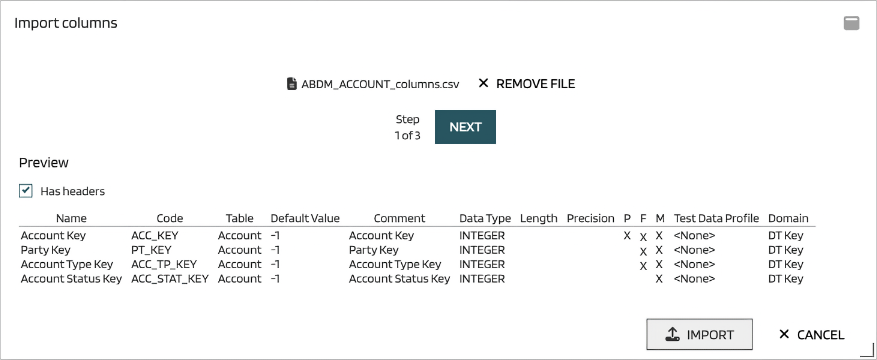
- If the import file contains headers, MetaCroc tries to link columns to attributes. Unlinked columns can be linked manually or keep ignored.
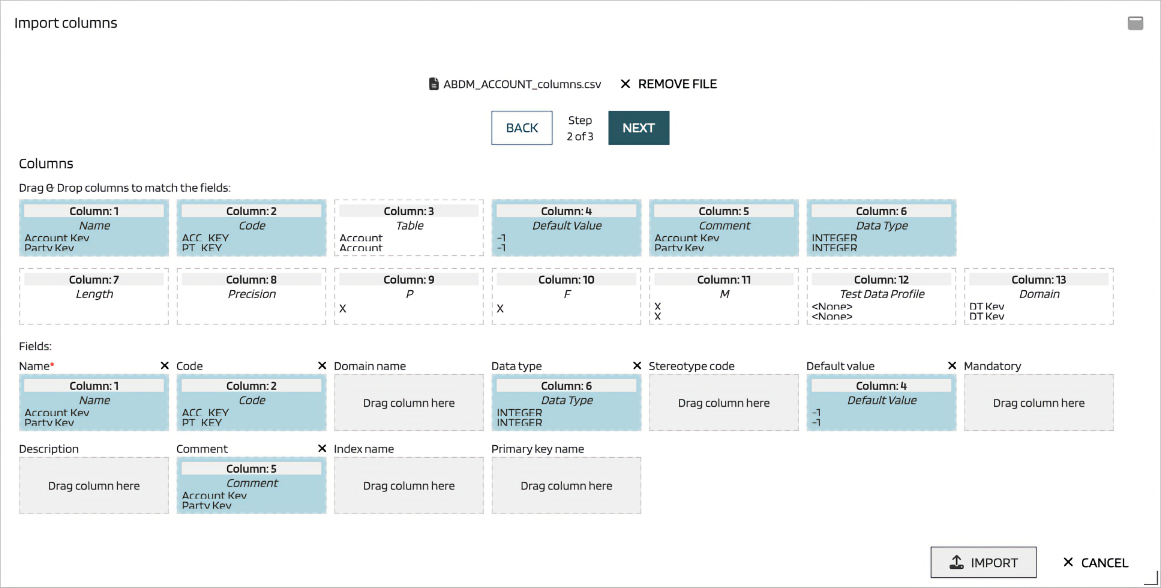
- The final settings
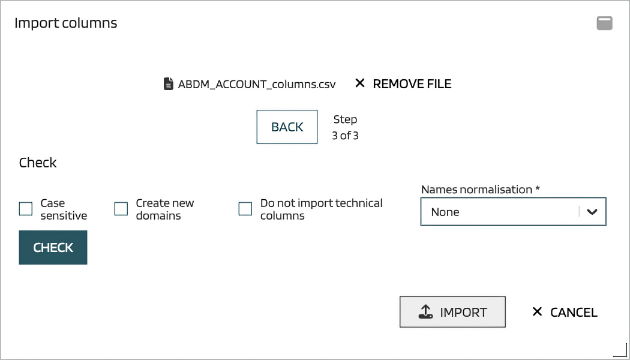
| Attribute | Description |
|---|---|
| Case sensitive | The same names but with different letter cases are recognize as different ones (e.g, DT Key and dt key are recognize as two different names) |
| Create new domains | If new domains are found they are automatically created in Settings |
| Do not import technical columns | Columns with the same name as technical one is not imported |
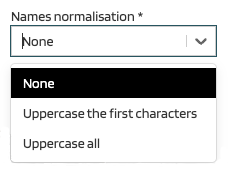
| Names normalization | Names aer normalized as selected from the dropdown |
Checks #
There is several checks performed by pressing Check button:
- User has sufficient access rights
- User has element locked
- Domains exist when Create new domains checkbox is not active
- Column names and codes duplicities
When check is not successful, it is not allowed to import.
New domain is also recognized if the existing domain has different definition. It is therefore necessary to be careful - in such situation new domains with the same name but different definition are created.