
Access Management in MetaCroc #
(available from release 190)
Summary #
MetaCroc separates who can see and change metadata using accesses fot groups: rights are granted to user groups, each permission may be explicitly allowed or denied, and rules flow down the structure tree so child items inherit parent settings unless you override them lower down. Where allow and deny conflict for the same permission, deny wins, which keeps broad grants safe while still letting you lock down sensitive areas.
What access control does #
Access control ensures every user only sees and edits structures they are entitled to reach, according to their group membership.
How it works in practice #
- Permissions are configured for user groups, not individually for every account.
- Each permission may be either:
- Allowed
- Denied
- Permissions inherit through the structure tree:
- What you set higher up applies to descendants as well.
- Lower in the tree you can add rules or tighten them (for example with targeted denies).
Managing groups #
You maintain groups, assign members, then attach ACL entries on structures to those groups (see below).

The Groups screen lists every group with its name, description, member count, and a Manage action. Use Add new to create another group and the pagination controls when the list grows.
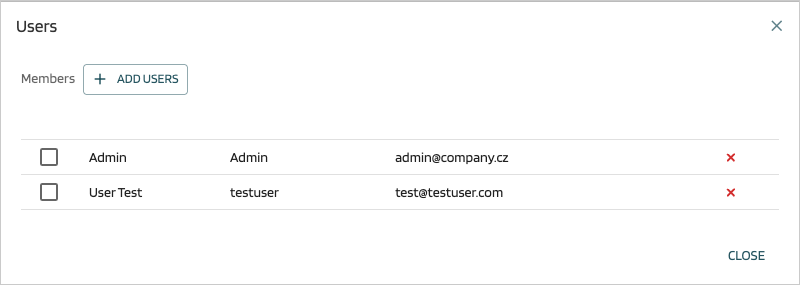
Opening Manage on a group opens the Members dialog (titled Users). Use + ADD USERS to add accounts to the group; the table lists each member’s full name, username, and email, and you can drop someone from the group with the row remove control. Choose CLOSE when finished—those users inherit whatever ACL rules reference this group on structures.
Setting permissions on a structure #
Rights are edited per structure (folder, table, etc.) from the project tree.
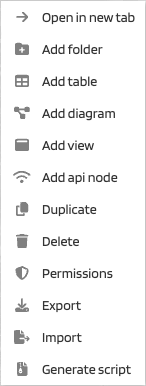
Right-click a structure and choose Permissions (shield icon). That opens the permissions dialog for that item so you can review effective rights and edit direct ACL entries.
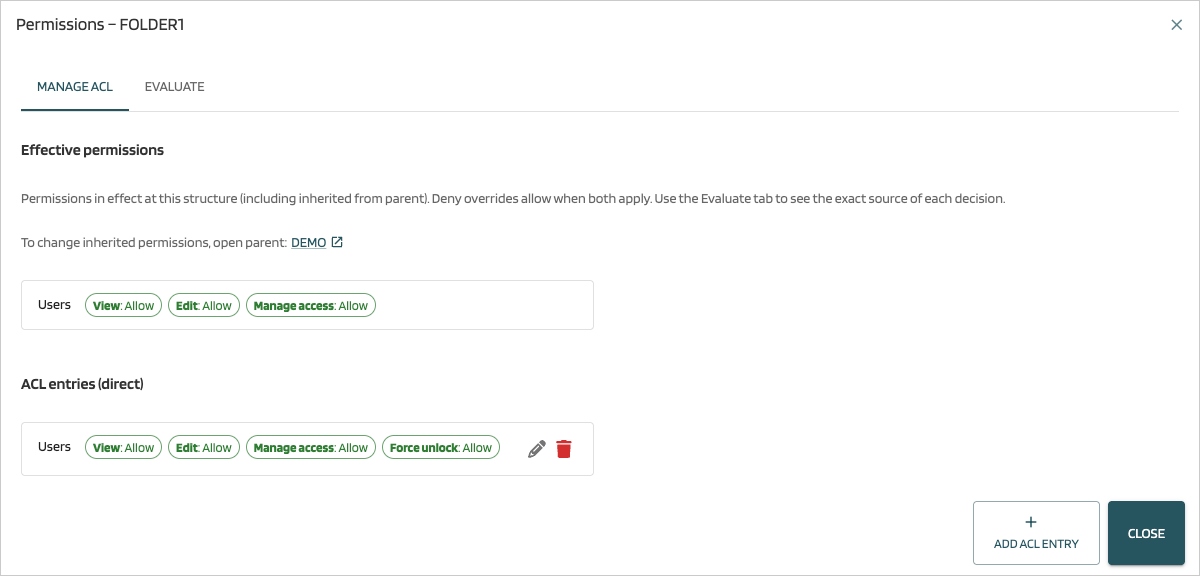
The Manage ACL tab shows permissions in effect at this structure, including inheritance from ancestors (with a shortcut link to open parent when you need to change inherited rules instead). Deny overrides allow when both apply; the explanatory text reminds you that the Evaluate tab explains why. Below ACL entries (direct) lists entries defined only on this structure—each row lists the group and its allow/deny chips, plus edit and delete. Use Add ACL entry to grant or deny a permission for another group without leaving this structure.
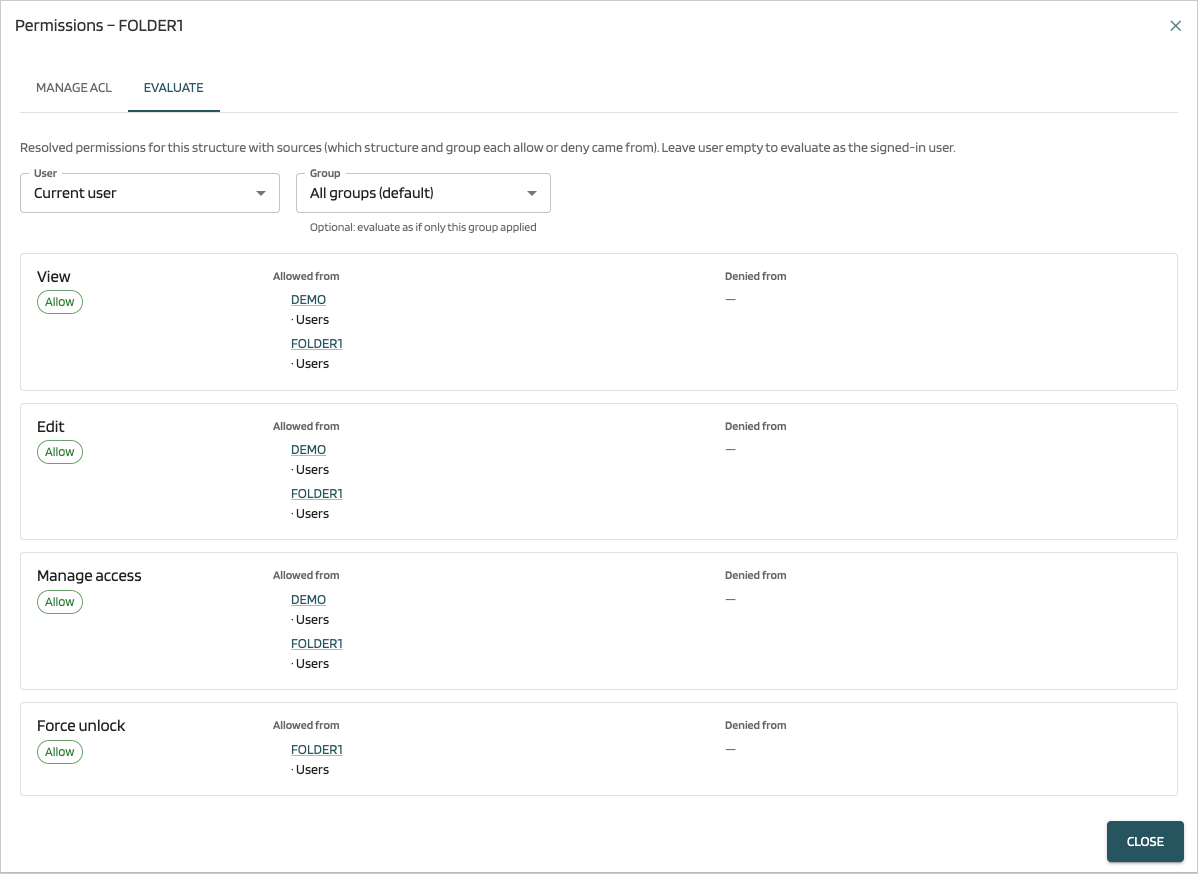
The Evaluate tab shows resolved permissions with sources: for each capability you see whether it is allowed or denied and which structure and group produced that decision—useful when inheritance and overlapping rules make the outcome hard to guess. Optionally pick a User (or rely on Current user) and constrain Group to simulate “as if only this group applied,” then inspect Allowed from and Denied from for View, Edit, Manage access, Force unlock, and related flags.
Recommendations #
Key rule #
If the same permission is both allowed and denied somewhere in the ancestry for a user/group, deny always wins.
That lets you assign broad allowances high in the tree and carve out exceptions lower down with denies.
Simple example #
- At department level the
Usersgroup is allowed to view and edit. - On one sensitive folder the
Usersgroup is denied edit.
Result: users still see the folder but cannot change it.
What you gain #
- Consistent rules across large structures with less duplication.
- Less manual work thanks to inheritance.
- Stronger safety because explicit denies reliably override grants.
- Easier onboarding as teams and metadata grow—adjust groups and a few ACL rows instead of chasing per-user tweaks.
Day-to-day practice #
- Set broad allowances higher in the hierarchy.
- Use targeted denies lower down for exceptions.
- Review groups periodically so membership and naming stay purposeful and avoid needless overlap across teams.